| Support Category: External Training |
| Specialist Notes: |
IMPORTANT! Users can edit CPEs/CLEs for External Training courses they've added on their transcript with the 'External Training' form. The manager role does not have permission to edit Transcript CPE/CLE for others. If your user is not locating his/her course in the completed section of their transcript, please check the user's active and archived list. Note: If the users are having difficulties, we can update/edit the External Training for the user. |
| Standard Response: |
To make changes to an 'External Training' you’ve completed, kindly follow the instructions below:
1. Hover your mouse cursor over the 'Learning' tab on your homepage.
2. A drop-down will appear - click on 'View Your Transcript'.
3. Click the 'Active' button and select 'Completed' from the drop-down menu.
4. Locate the training and select the 'Training Details' button on the right of the title of the training.
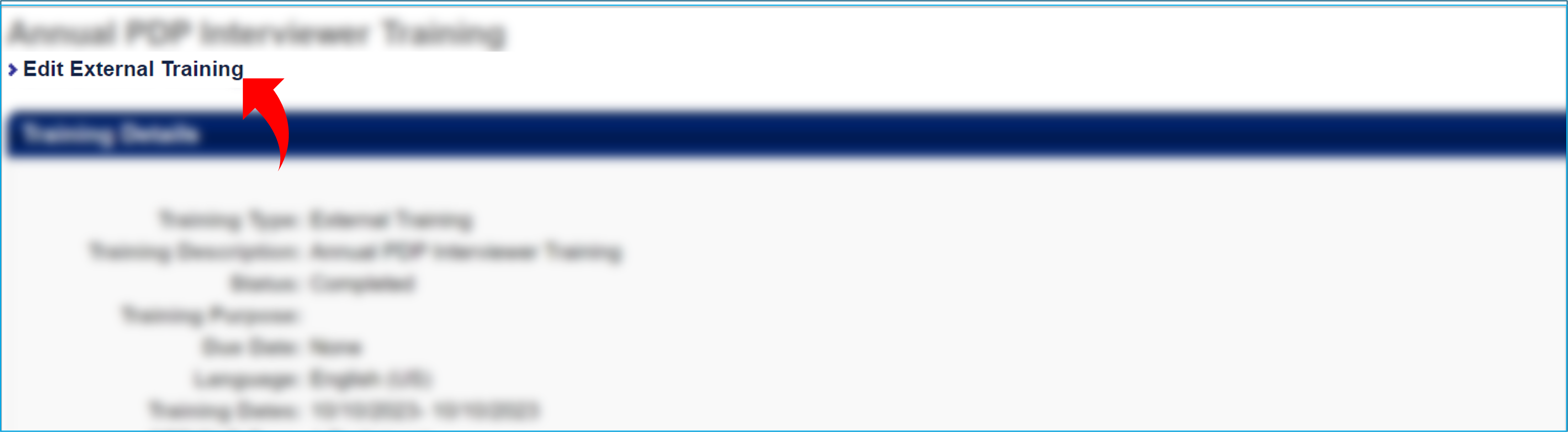
5. On the 'Training Details' page, click the 'Edit External Training' link under the training title; this reopens the form.
6. Once you've made your changes, click the 'Submit' button to save those changes.
Note:
- If the training's end date is within 30 days from the date it was marked complete, it may take up to 24-48 hours for the CPEs/CLEs to show up on your CPE or CLE Training Detail List’s dashboard.
- If your training's end date is over 30 days from the date it was marked complete, it can take over the weekend to update on your dashboard.
